Custom Images, Startup Scripts, and Instance Templates

In Google Cloud Platform (GCP), Custom Images, Startup Scripts, and Instance Templates are foundational tools for automating, standardizing, and scaling your Compute Engine virtual machine (VM) deployments.
1. Custom Image
A Custom Image is a snapshot of a boot disk containing an operating system (OS) along with any pre-installed software, configurations, or data.
- How it works: Instead of starting from a plain, vanilla OS image provided by Google (like standard Ubuntu or Debian), you take an existing VM disk, install your application dependencies, security patches, or software stacks, and create a custom image from it.
Key Benefits:
- Faster Boot Times: Because applications and packages are already baked into the image, your VMs don't need to download or install them from scratch every time they start.
- Consistency ("Golden Images"): Ensures every server in your environment starts with the same software version and security configuration.
Note: You must have the VM in GCP before creating a custom image.
Step 1: Prepare Your Source VM
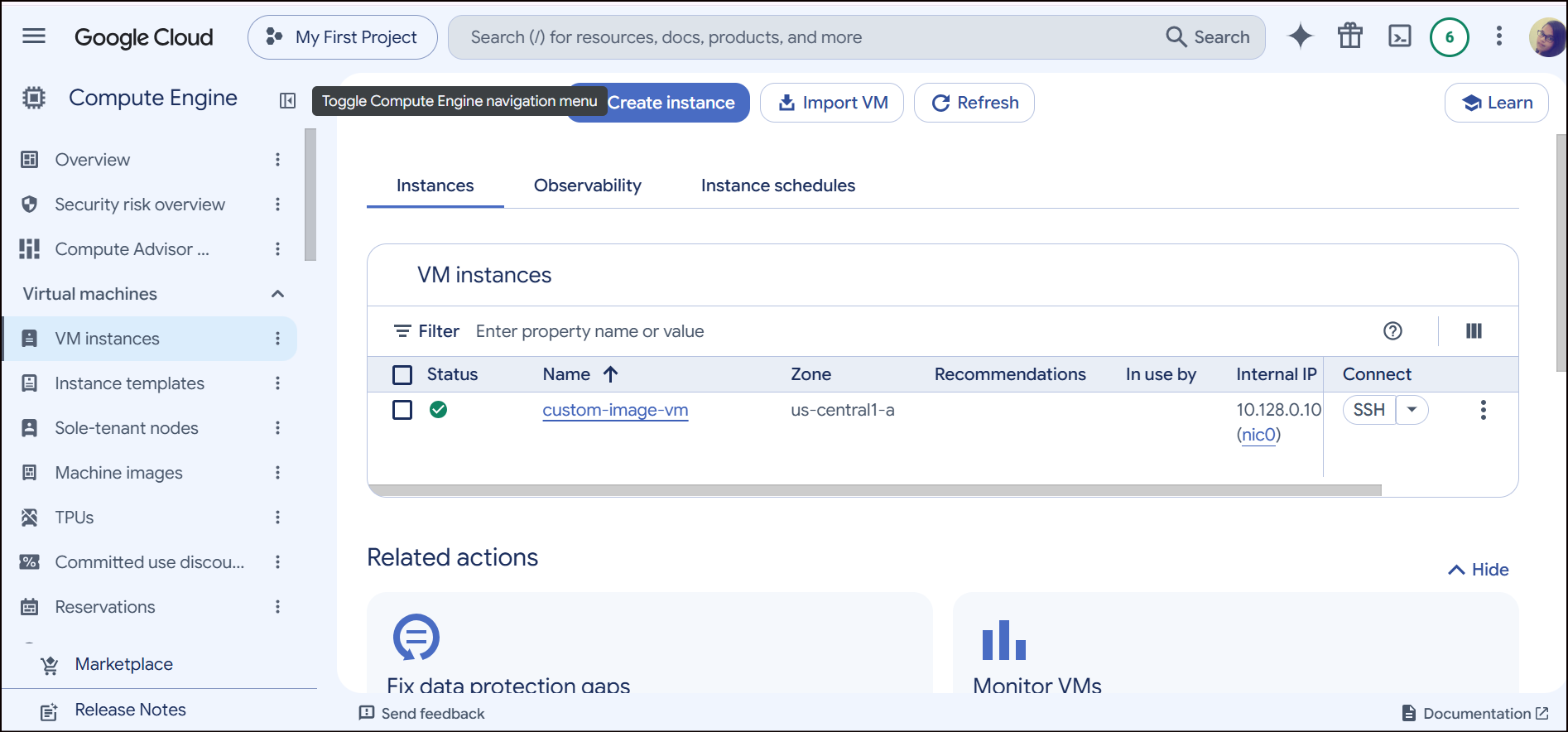
- Go to the VM instances page in the GCP Console.
- Identify the VM whose disk you want to capture as an image.
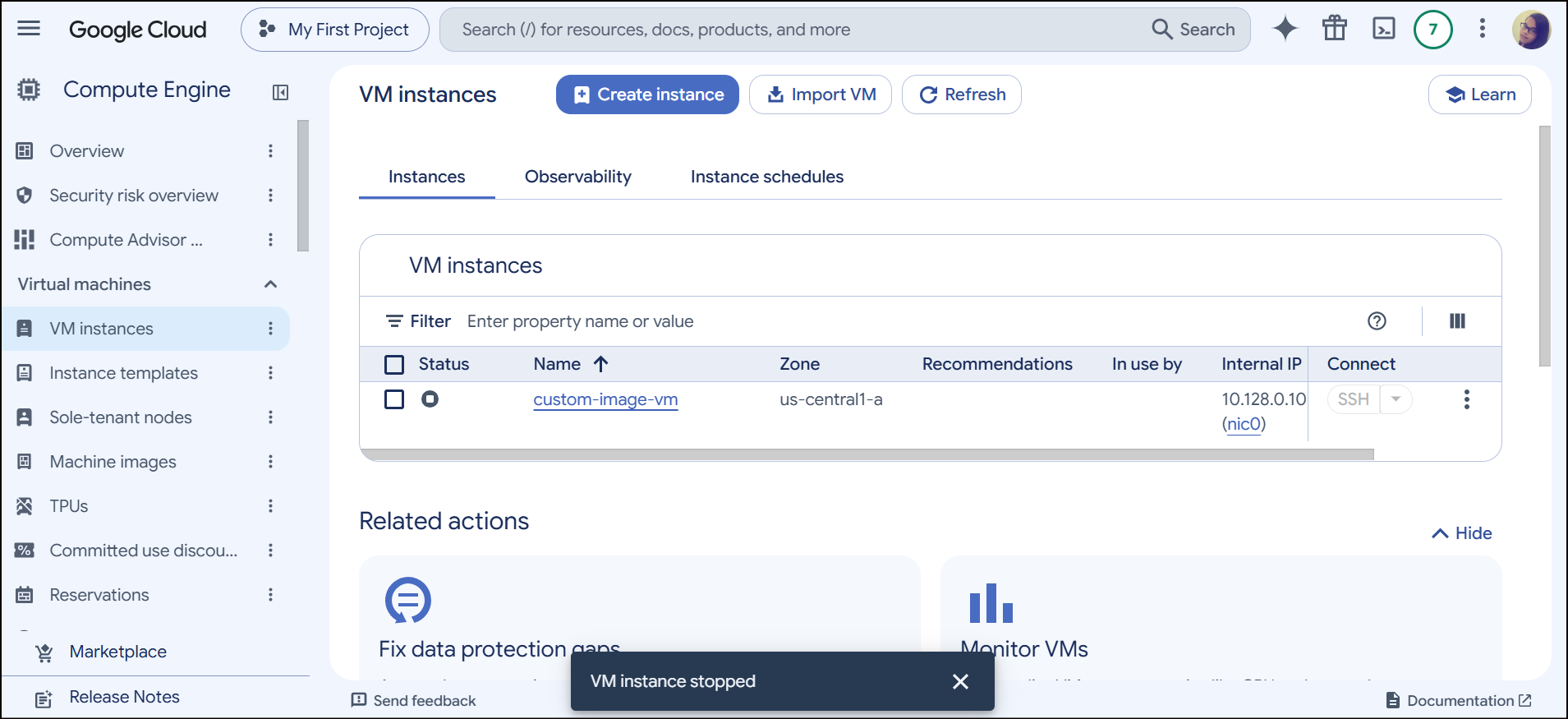
- Stop the VM. (Important: To ensure data consistency and avoid corrupting files, the instance should be stopped before creating an image from its boot disk).
Step 2: Navigate to the Images Page
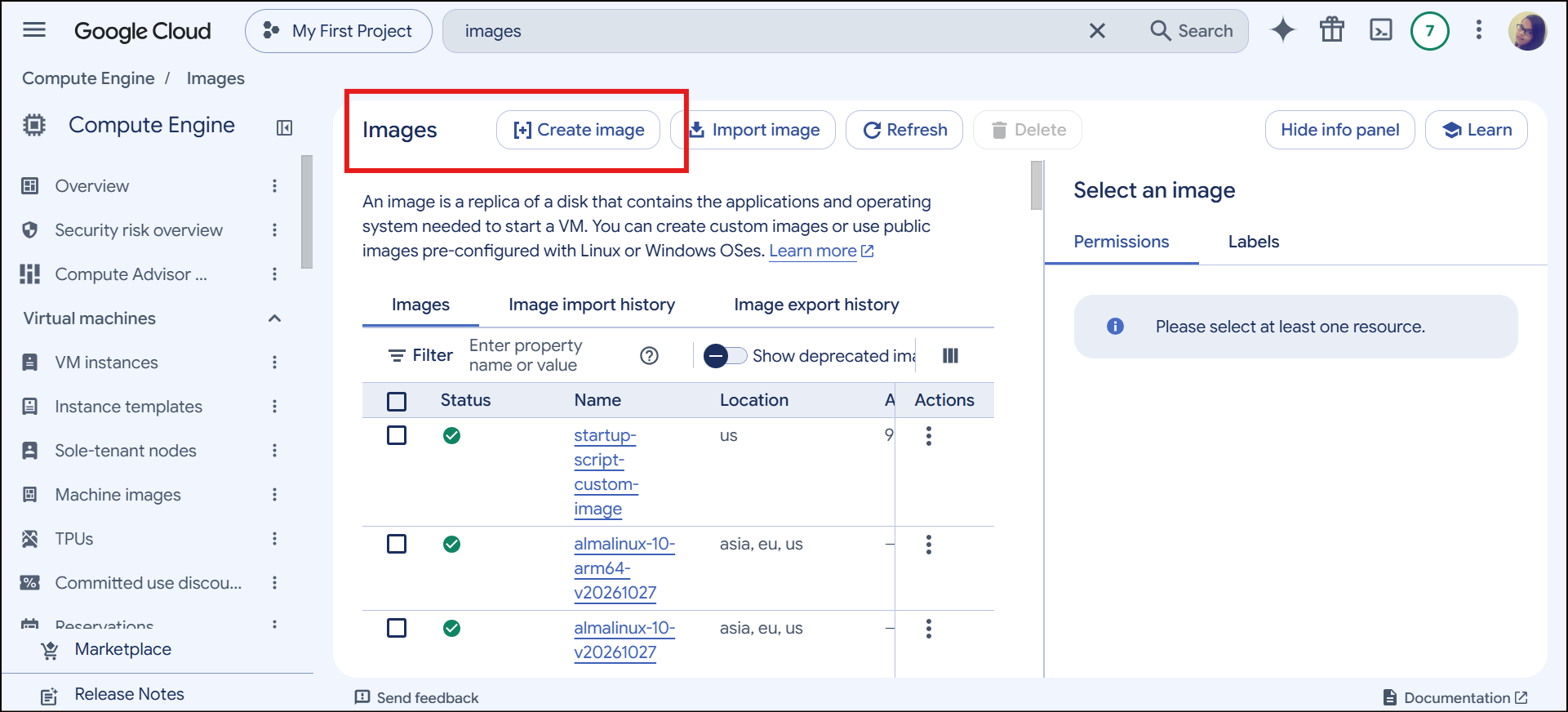
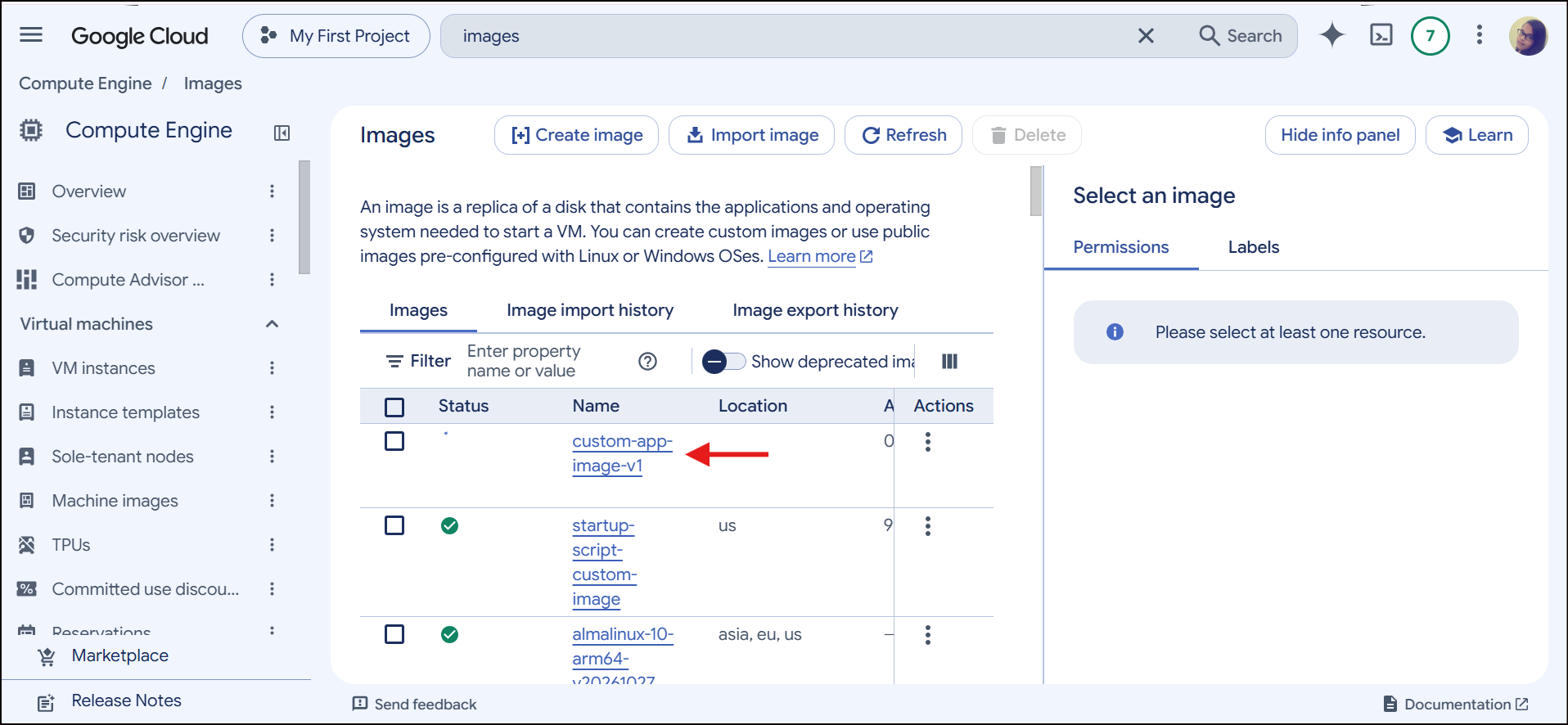
- In the Google Cloud Console search bar at the top, type Images and select the Images (Compute Engine) service.
- At the top of the page, click + Create image.
Step 3: Configure Your Custom Image
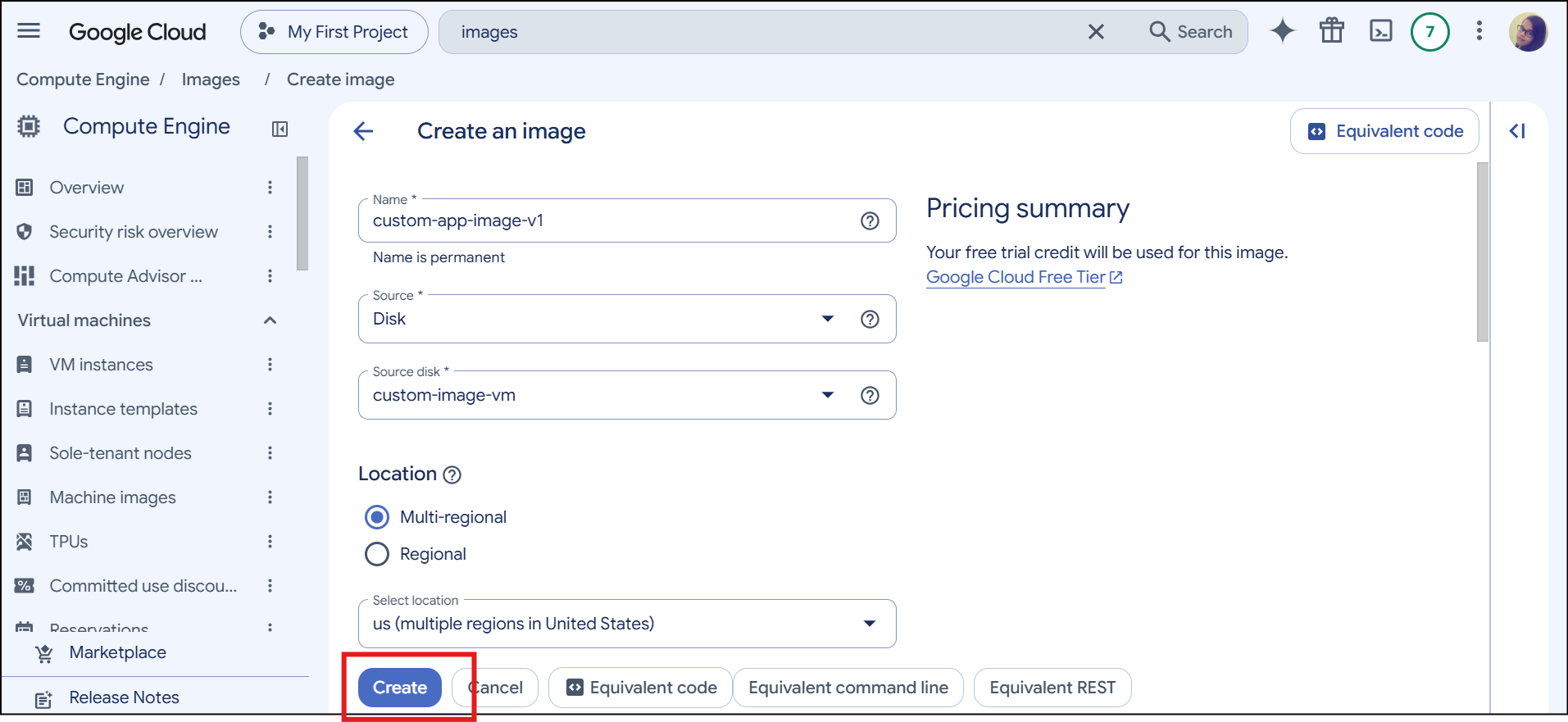
- Name: Give your image a lowercase, hyphen-separated name (e.g.,
my-custom-app-image-v1). - Source: Select Disk.
- Source disk: Choose the stopped VM instance or its specific boot disk from the dropdown menu.
- Location: Choose whether you want the image stored in a Regional location (tied to a specific region for faster local creation) or Multi-regional (available across multiple regions).
- Encryption: (Optional) Leave as Google-managed encryption key unless your organization requires a Customer-Managed Encryption Key (CMEK).
- Family: (Optional) Enter an image family name (e.g.,
web-servers). Image families point to the latest image in that group automatically when used in templates. - Guest OS features: GCP usually auto-detects features like UEFI or multi-IP support based on your source disk, but you can configure them manually if needed.
Step 4: Create the Image
- Click Create at the bottom of the page.
- GCP will take a few minutes to process the snapshot and build the image. Once complete, it will appear in your list of custom images, ready to be used in Instance Templates or new VM creations.
2. Startup Script (Bootstrapping)
A Startup Script is a script (typically Bash for Linux or PowerShell for Windows) that you pass to a VM instance via metadata. The VM executes it automatically during boot.
How it works: When the VM boots up, the Compute Engine guest agent picks up the startup script from the instance metadata and runs it with root/administrator privileges.
How to add a script while creating a VM with a specific software configuration.
- Start creating your VM instance or Instance Template with all the configuration, and in Advance option, add the script.
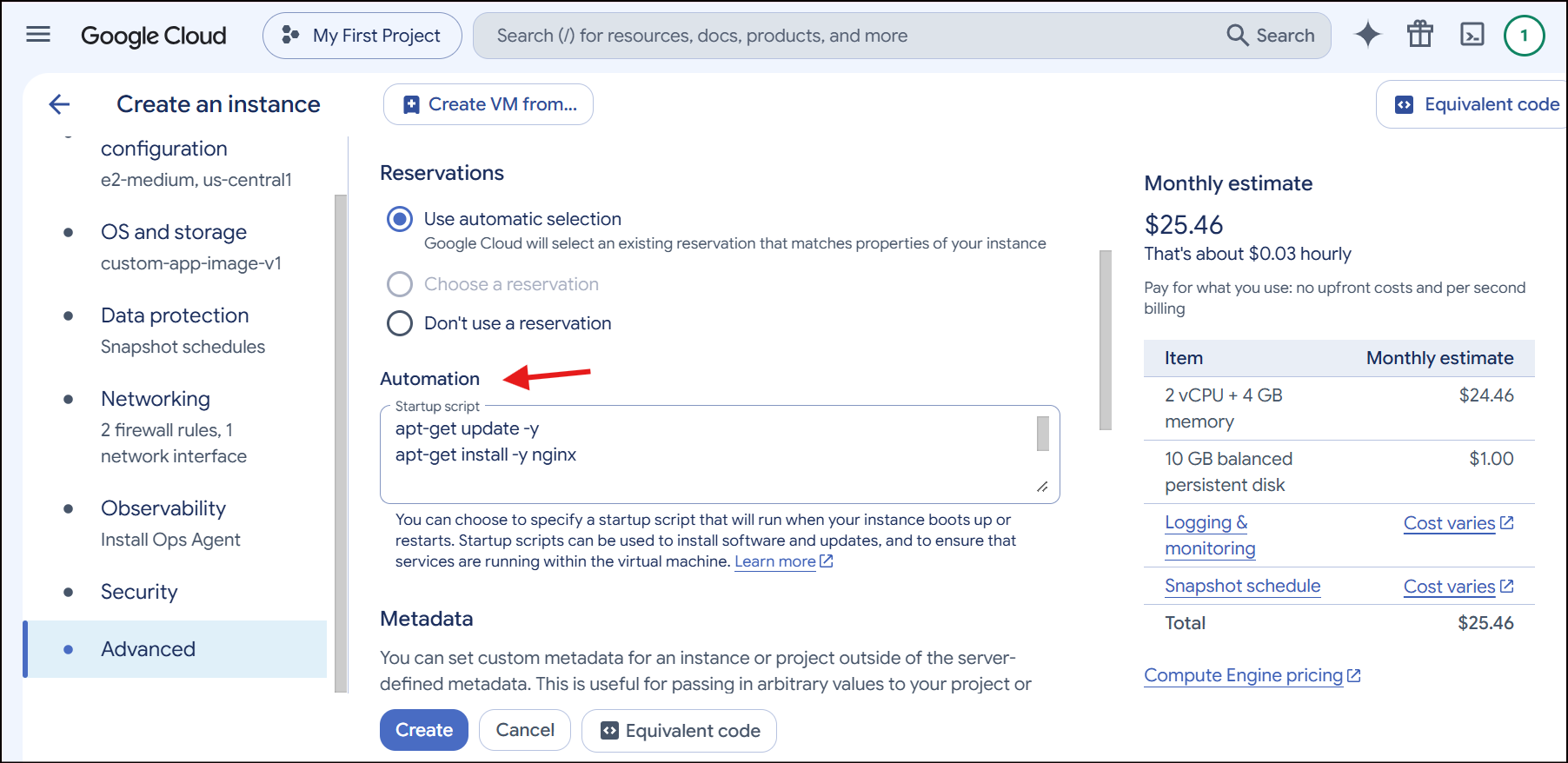
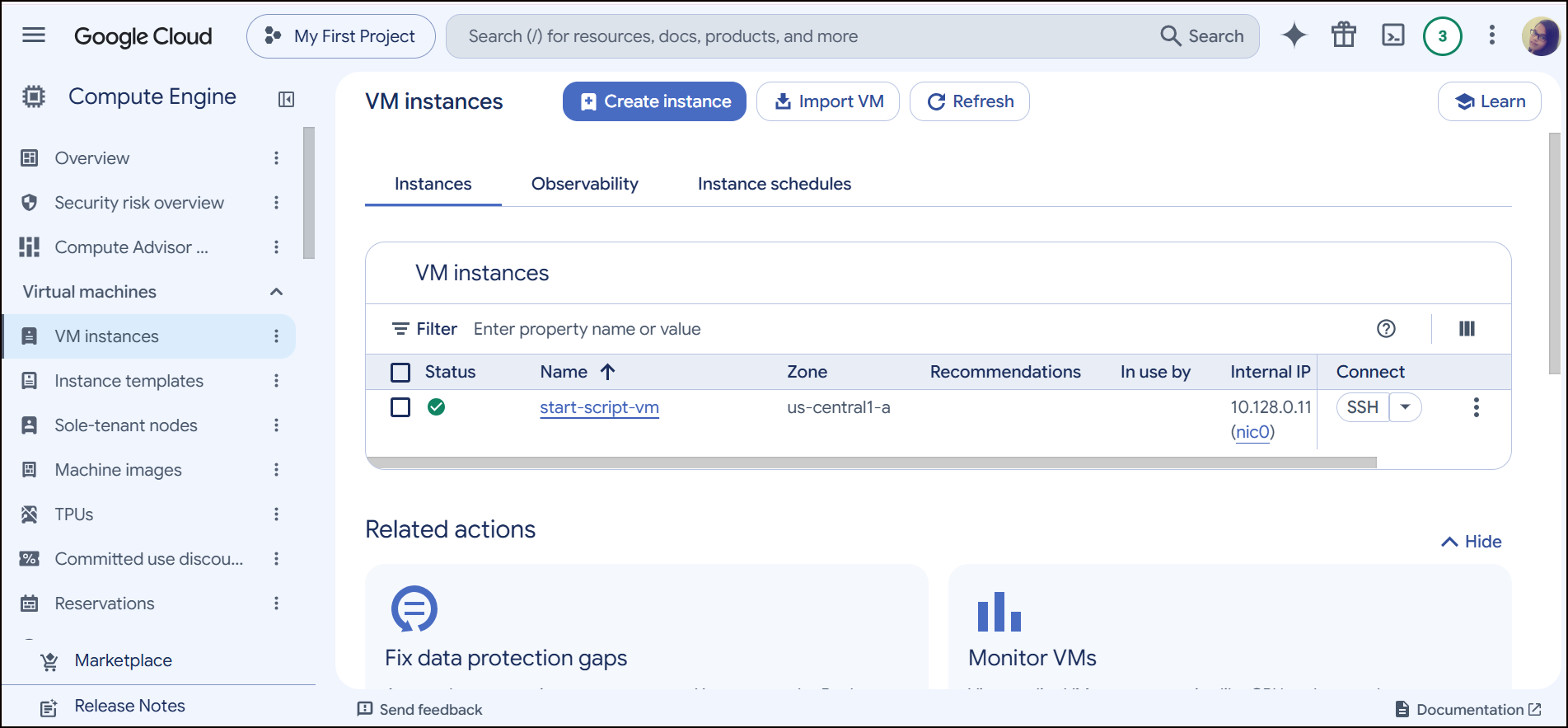
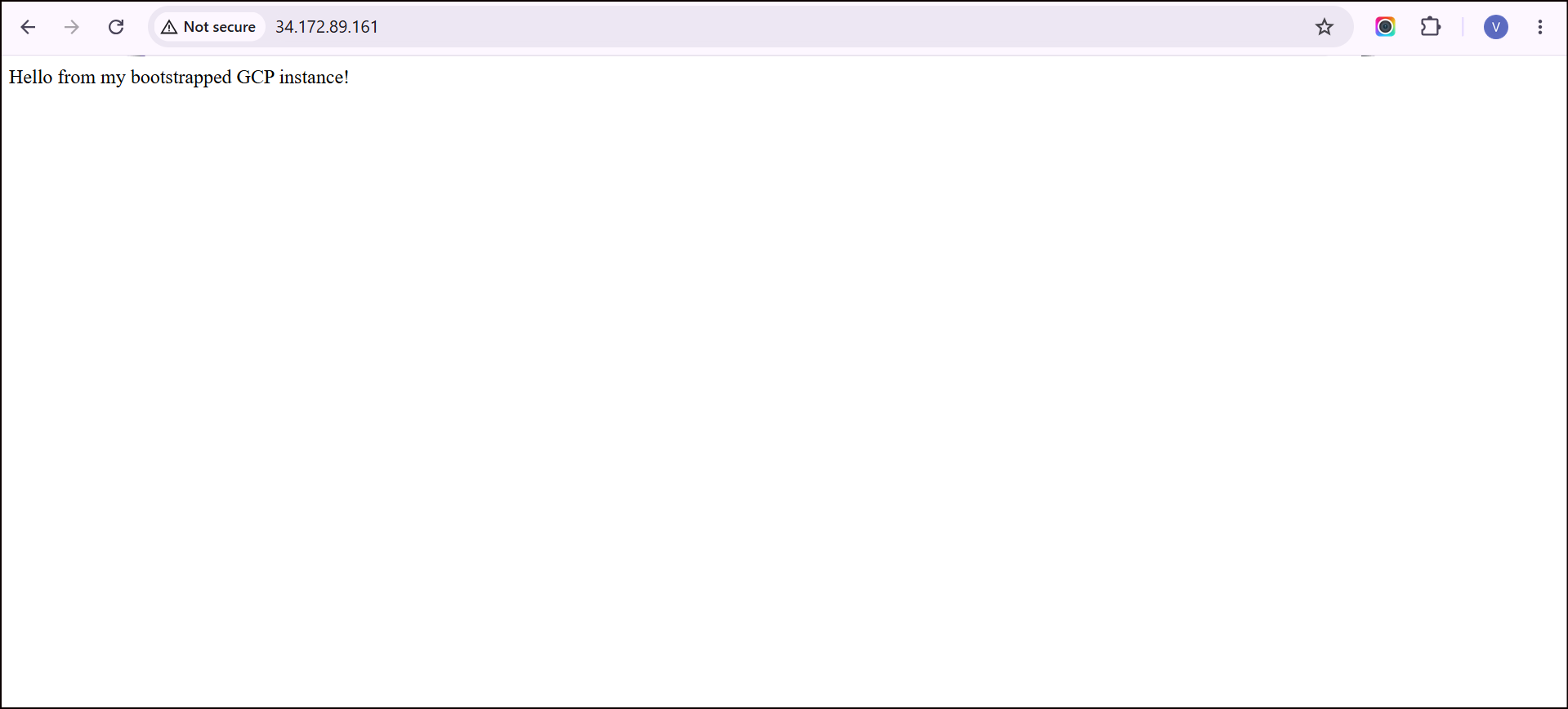
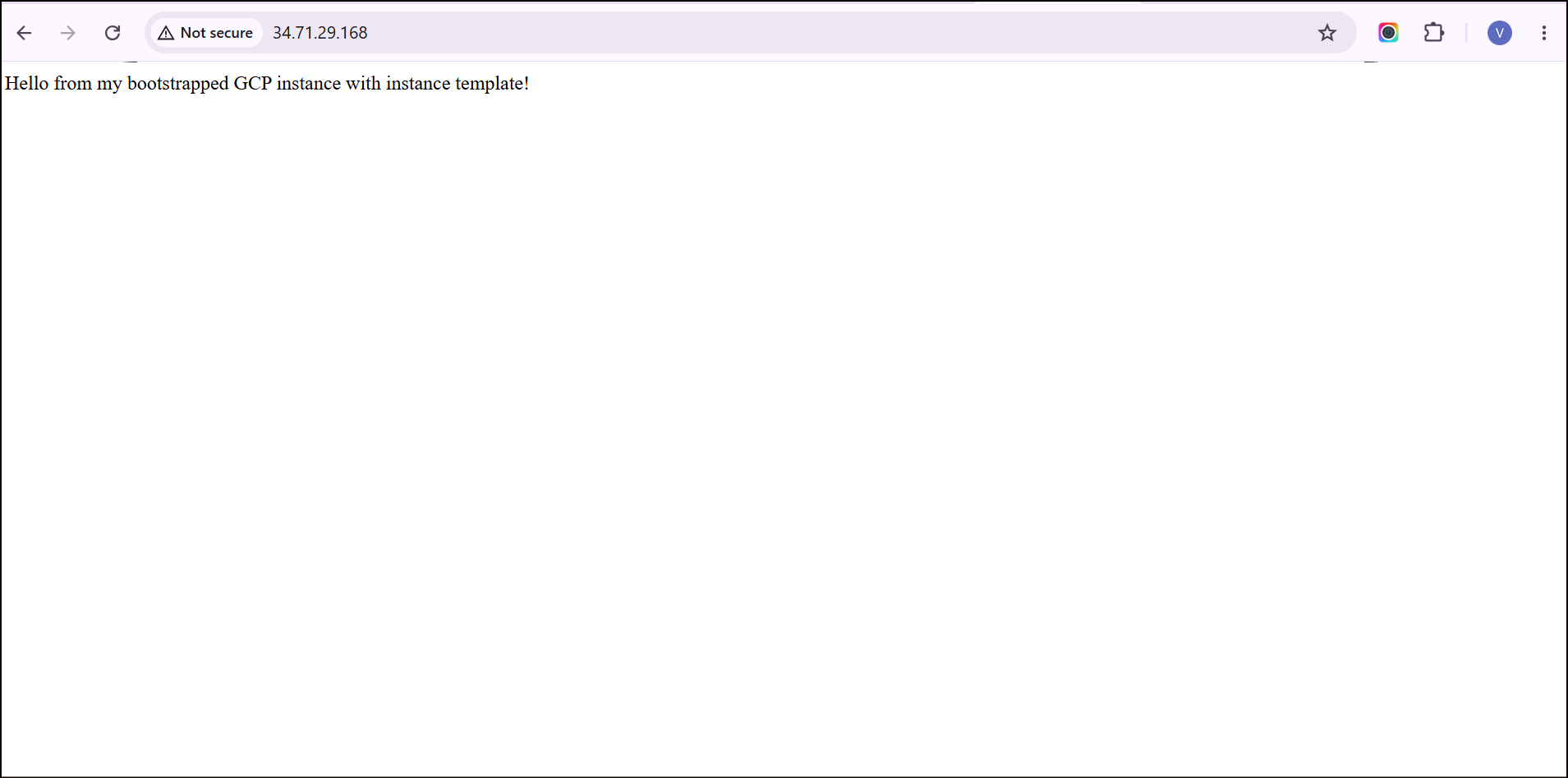
Bootstrapping startup script works!!
3. Instance Template
An Instance Template is a global resource that acts as a reusable blueprint for creating VM instances or Managed Instance Groups (MIGs).
- How it works: It packages all the configuration settings required to launch a VM—such as the machine type (e.g.,
e2-medium), the boot disk (which can reference a Custom Image), network settings, metadata (including Startup Scripts), and IAM service accounts. - Key Benefits:
- Reusability: Instead of manually configuring dozens of flags every time you create a VM, you define it once in a template.
- Auto-scaling: Instance templates are required for Managed Instance Groups (MIGs) to add or remove identical instances based on traffic load automatically.
Here is the step-by-step guide to creating one:
Step 1: Navigate to Instance Templates
- In the Google Cloud Console search bar at the top, type Instance templates and select it under Compute Engine.
- At the top of the page, click + Create instance template.
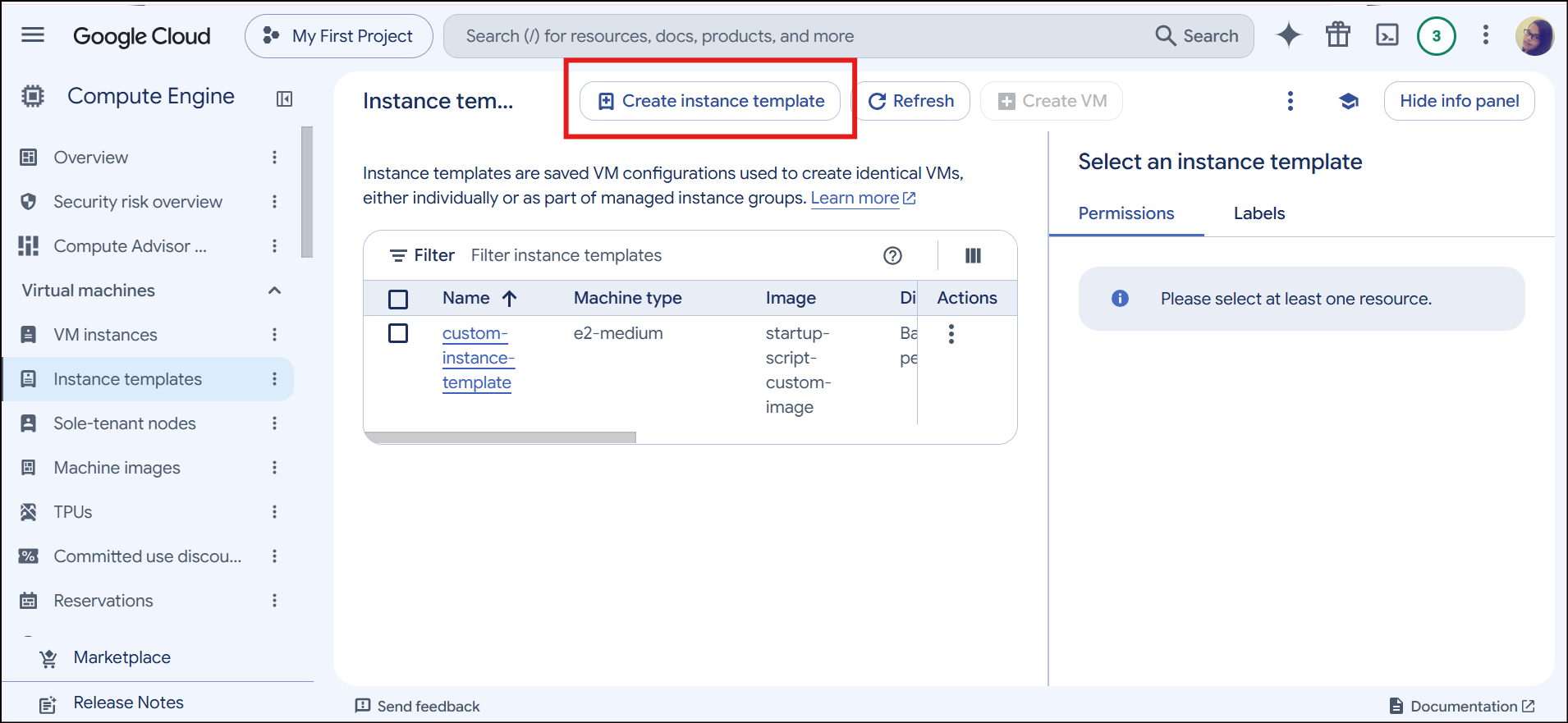
Step 2: Configure the Template Settings
An instance template looks almost identical to the normal VM creation page. Fill out the configuration you want your future VMs to use:
- Name: Give your template a lowercase, hyphen-separated name (e.g.,
my-web-server-template). - Machine configuration: Choose your series, machine type (e.g.,
e2-medium), and memory. - Boot disk: Click Change if you want to swap out the default OS. This is where you can select your Custom Image from the dropdown menu instead of a public image.
- Firewall: (Optional) Check the boxes to allow HTTP/HTTPS traffic if this is a web server.
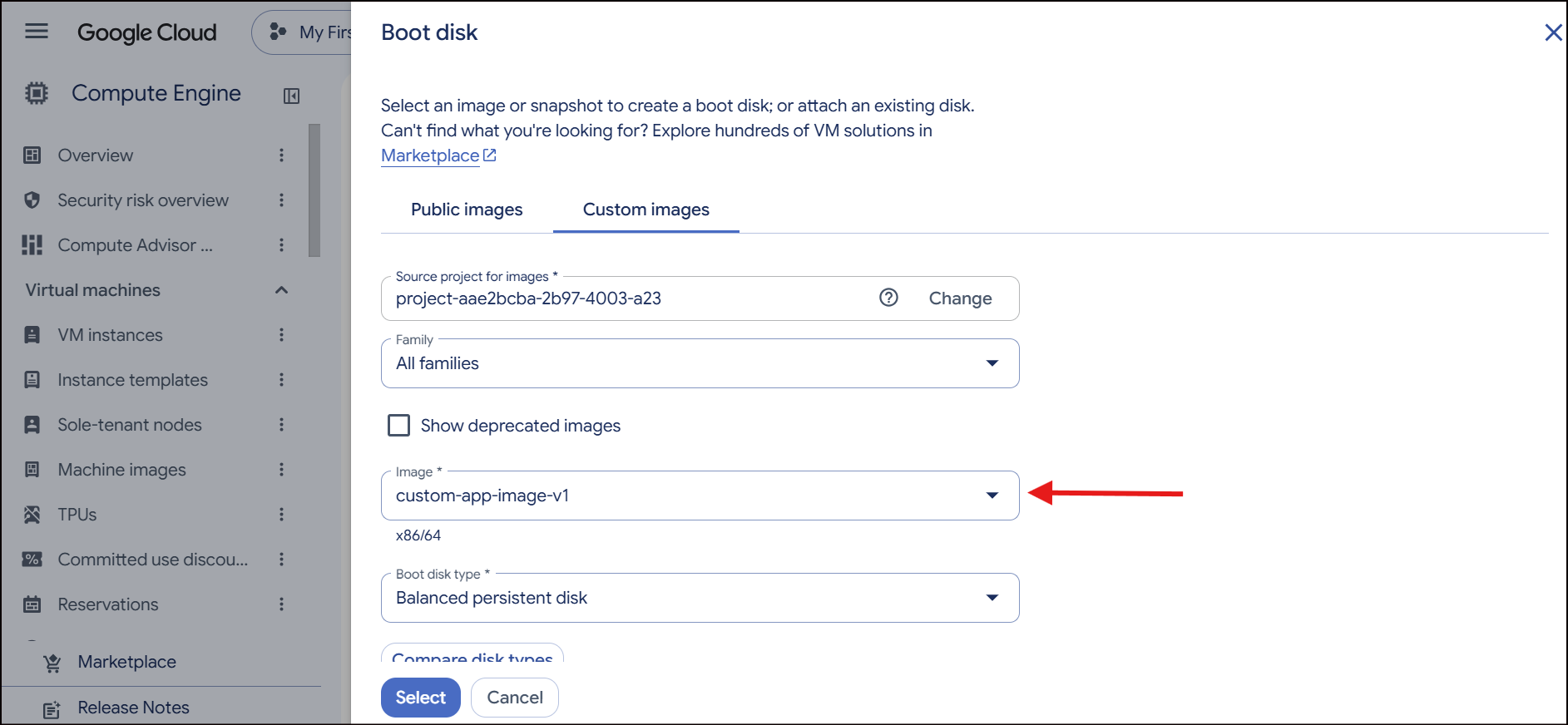
Step 3: Add Your Startup Script (Bootstrapping)
- Scroll down and click on Management, security, disks, networking, sole tenancy to expand it.
- Click on the Management tab.
- Scroll down to the Automation section.
- Paste your script directly into the Startup script text box (or provide your Cloud Storage URL in the metadata section if preferred).
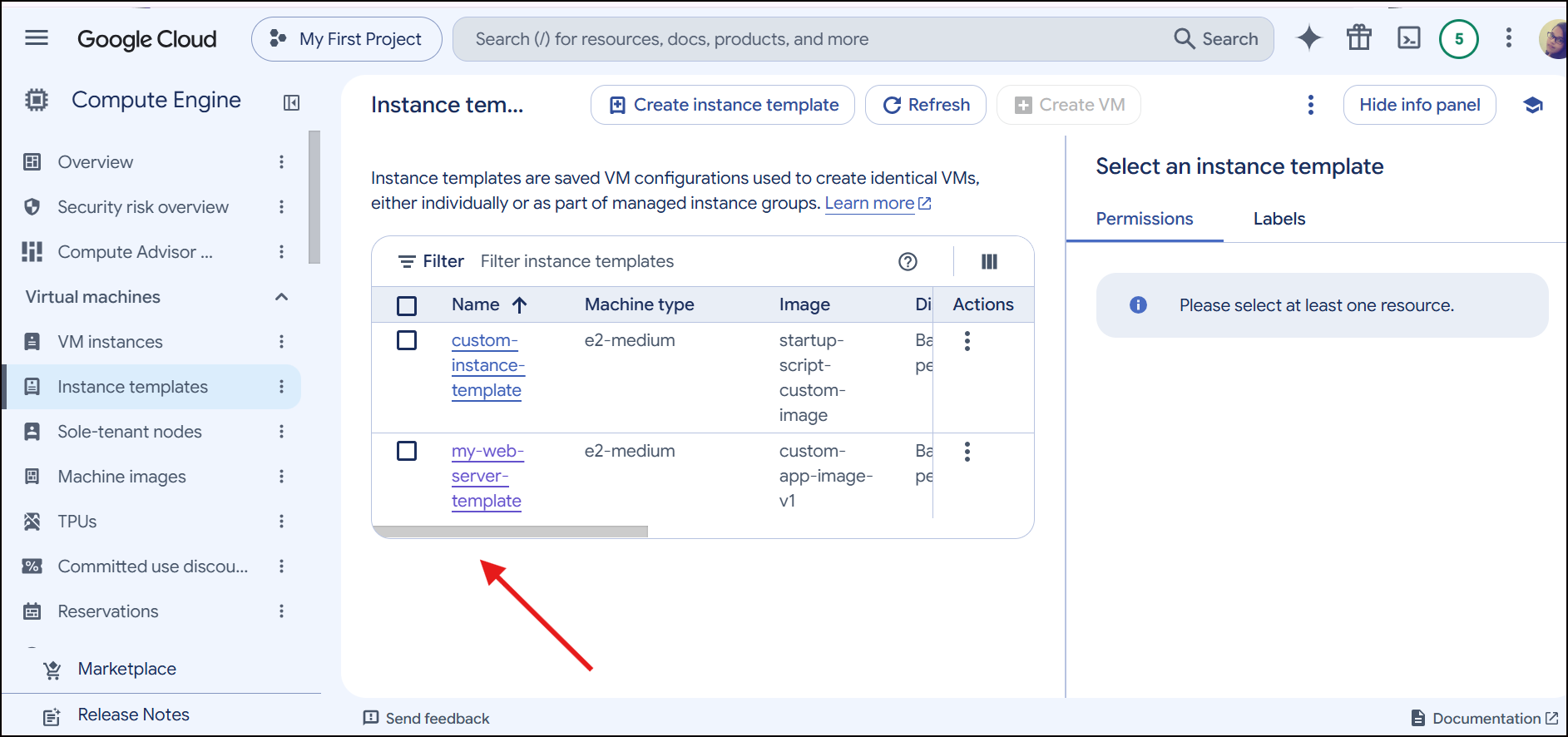
Create a Single VM Instance from a Template and click on create.
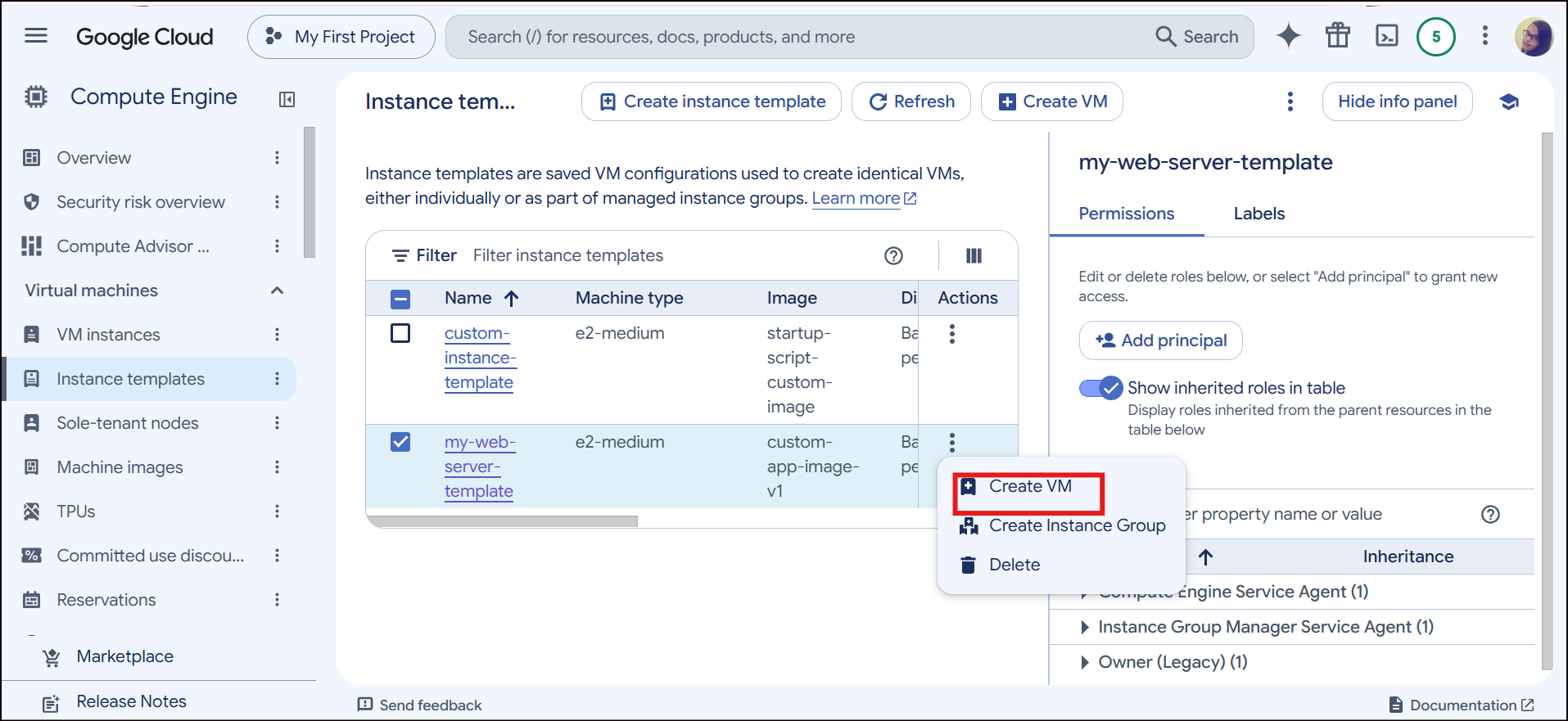
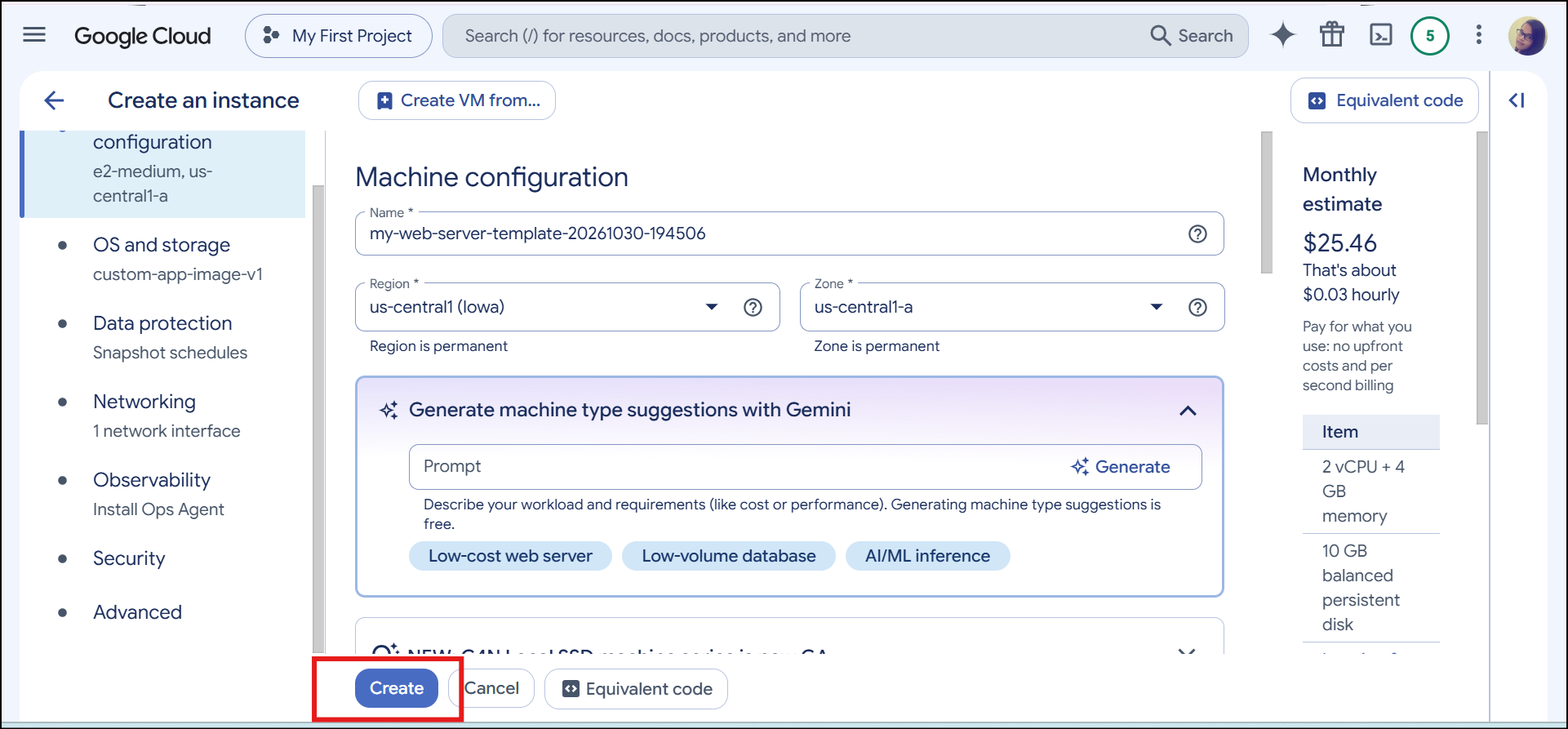
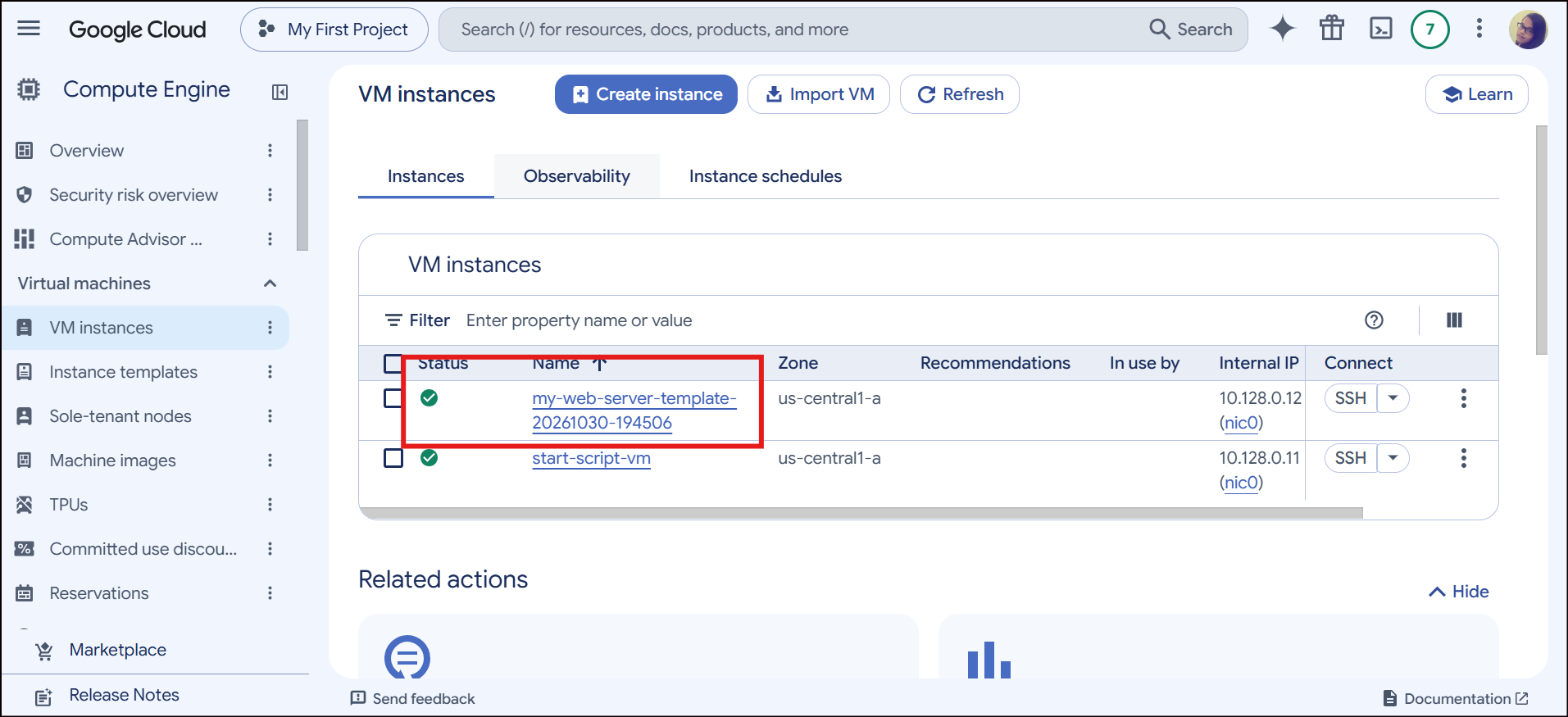
VM is ready.
The automated script is also working!!
Once you have created an Instance Template, you can use it to quickly spin up individual virtual machines or automate scaling for your applications.
About the author
Hi, I am Vibhuti Jain. A Devops Tools enthusiastic who keens on learning Devops tools and want to contribute my knowledge to build a community and collaborate with them. I have a acquired a knowledge of Linux, Shell Scripting, Python, Git, GitHub, AWS Cloud and ready to learn a lot more new Devops skills which help me build some real life project.
Comments
Join the discussionNo comments yet. Be the first to comment.
GCP Google Cloud Provider
A hands-on series on Google Cloud Platform: core services, setup guides, and practical tips for DevOps and cloud engineers.”